Use this walkthrough when you are setting up Intermio for the first time and want a clean starting point before any schedules are created.
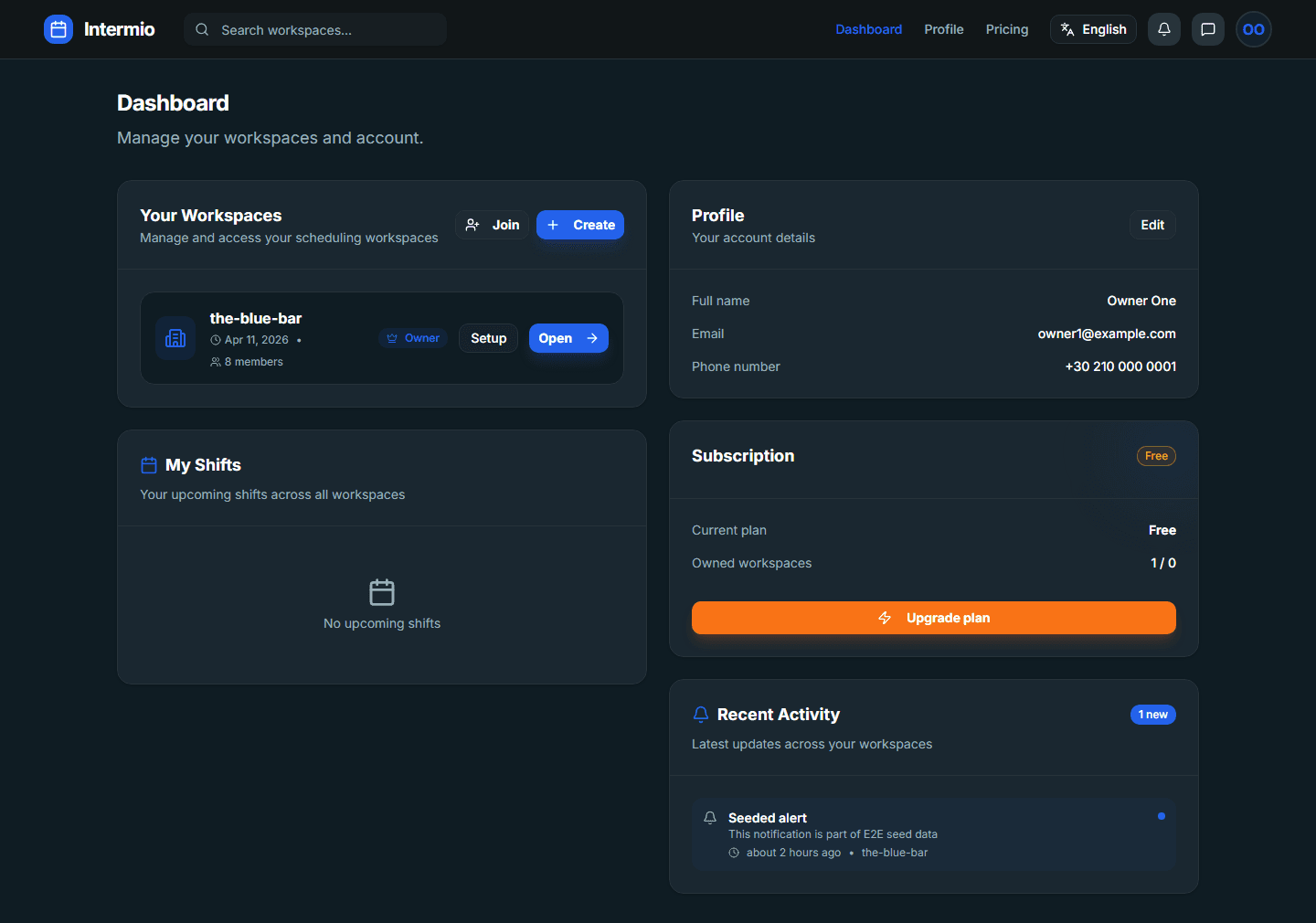
1. Open the dashboard and pick the workspace you are configuring
After signing in, start from the dashboard. If you already have a workspace, open it from the dashboard list. If you are creating the workspace as part of your first-run flow, finish that step first so the rest of the setup has a destination.
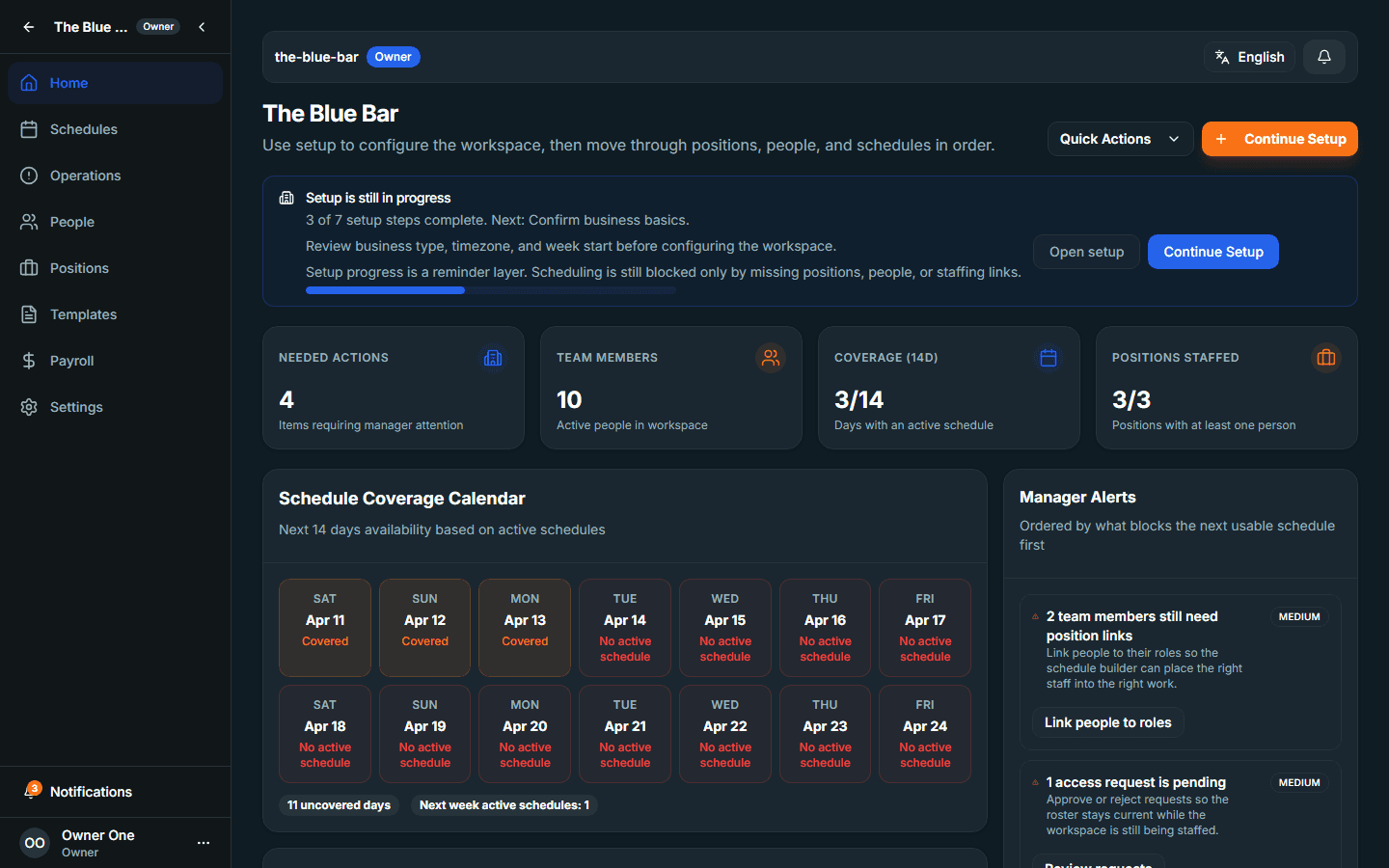
2. Check the workspace home for remaining setup prompts
Once you open the workspace, review the home surface first. This gives you the quickest picture of what still needs attention before scheduling can work smoothly.
3. Make sure you have the minimum operational structure
- At least one active person record
- At least one position that can be used in scheduling
- Clear workspace settings for the team you are about to plan for
4. Move next to people and positions
Once the workspace itself exists and the home surface looks clean, continue with the people and positions setup tutorials. Those two pages create the core staffing model the rest of the schedule lifecycle depends on.